How to Check Your IICRC Certification Status Online Before Renewal

Aug 7 / RestoreTech 360 Team

Key Takeaways

  • Use the IICRC Global Locator to verify your public certification information and status quickly

  • Confirm your CEC progress, renewal invoice, and contact details in your IICRC profile before renewal deadlines

  • If your certification isn’t showing active, follow a short checklist to resolve missing hours or profile mismatches

When renewal is close and your status is unclear, here’s how to verify everything fast
You’re about to renew, but your IICRC CEC certification status looks wrong or missing when you search. That can feel urgent, especially if a client, employer, or insurer is asking for proof this week.

Most checks take under 10 minutes when you have your full name, company name, and IICRC number handy. By the end of this section, you’ll know exactly what to verify, how to confirm your CECs and invoices, and what to do next if something doesn’t match.

Next, treat this like a fast checklist before you start clicking around.

  • Gather the basics first: full name as it appears on your card, current company name, IICRC number, and your renewal month

  • Decide what “correct” looks like for you: which certifications should show (for example, WRT or ASD), and whether you’re expecting to renew 1 credential or 3

  • If you’re short on time, start with the public lookup for status, then move to the private account for CECs and invoices

A common mistake is searching only by company name and assuming you’re not listed. If your company recently changed names or you’re listed as an individual, search by your name and IICRC number first, then use company as a backup.

Also, separate what you can prove publicly from what you can confirm privately so you do not chase the wrong issue.

  • Public proof: your listing appears in the locator, your credential name is right, and the status looks active

  • Private proof: your renewal invoice exists, your payment history shows correctly, and your CEC totals match what you completed

This works best when your profile details are consistent across your training provider records and your IICRC account. Here’s the catch: if your name format changed (for example, “Mike” vs “Michael”) or your IICRC number is missing from a class record, your CECs may not appear where you expect even though you completed the course.

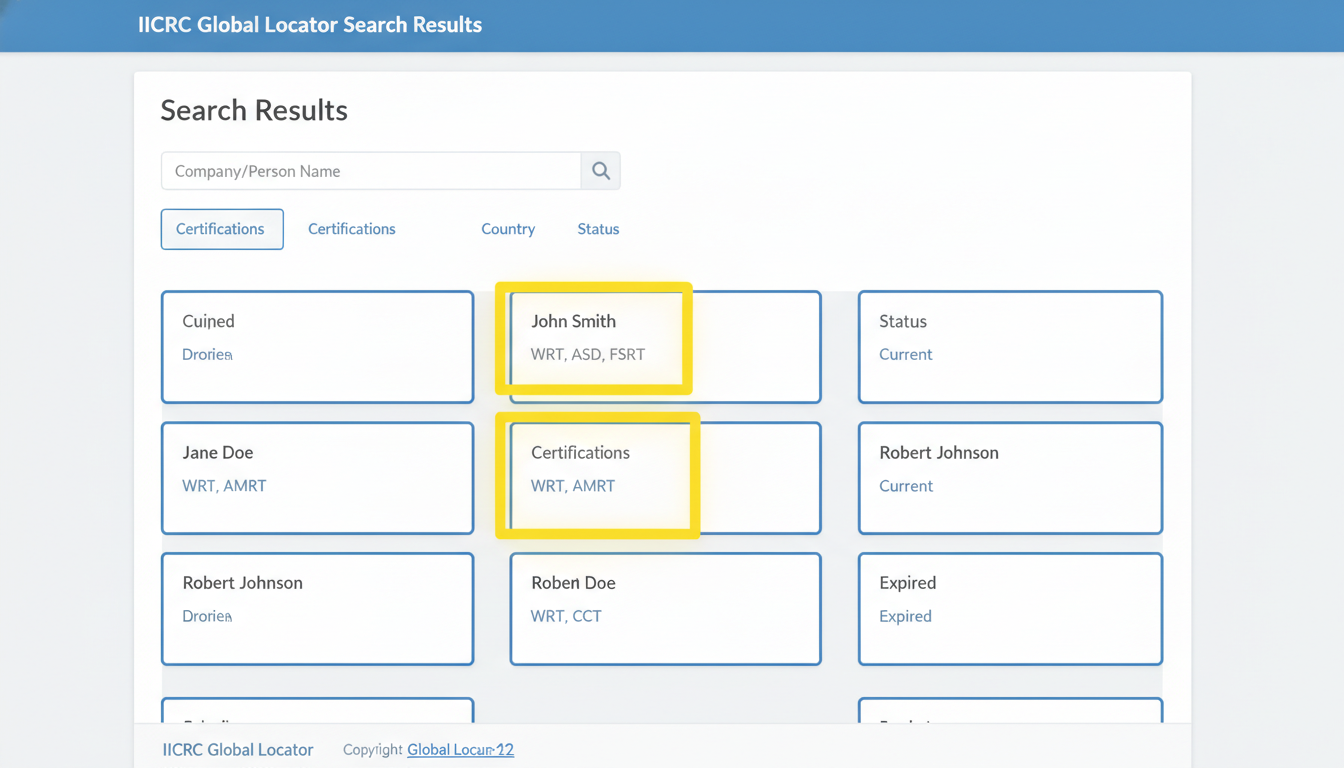
Run an IICRC certification lookup using the IICRC Global Locator

Next, use the IICRC Global Locator to do a quick public lookup before you spend time inside any account pages. If you are searching a common last name or a large company, add a city or state filter so you do not waste time opening the wrong match.

To complete an IICRC certification verification, search by either the certificant’s name or the company name, then confirm you have the right listing. Look for at least two matching details before you treat the result as yours:

  • First and last name (watch for middle initials or spelling variants)

  • Company name (some people show an older employer)

  • City and state (or service area)

  • Certifications shown (for example, one or more codes/credentials listed)

Also, record only what is public on the results page so you can compare it later. A simple notes line you can copy into a spreadsheet or email works well:

  • Certifications listed (write the exact codes you see)

  • Status shown (for example, current vs inactive, if displayed)

  • Any discrepancies (missing credential you expected, wrong company, duplicate listings)

Here’s the catch: this lookup works best for confirming what the public directory shows, but it can fail when the listing is out of date or when a name change has not been reflected yet. If you do one thing, make sure the name and location match before you assume a status problem is real

Verify your private account details that affect renewal

Next, log into your private account and confirm the details that renewal systems use to match you to the right record. A small mismatch, like an old email address, a different last name format, or the wrong company listing, can cause your renewal notice or invoice to attach to the wrong profile or not show up when you expect it.

Start with a quick profile check. If you only do one thing here, make sure your email and phone number are current since that is where renewal notices and alerts usually go.

  • Contact info: email, phone, mailing address

  • Employer or company listing: spelling, location, and whether you are listed under an old branch

  • Identifiers used for matching: name formatting, any member or technician number displayed, and linked accounts if shown

Also review renewal-related items inside the account so you are not guessing about what is due. Here is the catch: an invoice can exist even if you have not received an email about it, and a paid renewal may still show as pending until it posts.

  • Renewal invoice availability: look for a current invoice or renewal step you can open

  • Payment status: paid, pending, failed, or incomplete

  • Alerts and messages: popups, account notifications, or an inbox message about missing items

If you are short on time, skip deep profile edits and focus on three checks in this order: confirm your email, confirm the credential list matches what you hold, then confirm whether a renewal invoice is available. Common mistake: changing details and assuming it saves, so after edits, sign out and back in to verify the updates stuck.

Troubleshoot inactive or missing credentials and CEC gaps before renewal

So if your credential looks inactive, missing, or tied to the wrong details, treat it like a data-matching problem first.

Start by checking the basics that commonly break searches: spelling (including middle initials), alternate last names, company changes, and duplicate profiles created at different times. A common mistake is searching only one version of your name, seeing no match, and assuming the credential expired when it is actually listed under a slightly different profile.

Next, if your CEC hours do not match what you completed, do a quick reconciliation before you contact support.

Make a list you can scan in 2 to 3 minutes:

  • Course title

  • Date completed (month and year is usually enough)

  • Provider name (training company or school)

  • CEC amount expected (if known)

  • Proof of completion you can attach (certificate, receipt, or completion email)

If you only do one thing, gather proof for the most recent 12 to 18 months first, because last-minute gaps often come from newer courses not yet recorded.

That said, there is a point where it is faster to escalate rather than keep re-checking.

Contact IICRC support when:

  • You confirm you are searching all name variations and still cannot find the credential

  • Your credential appears, but the status or dates look wrong

  • Your CEC total is short and you have completion proof

Before you reach out, gather your full name as shown on training records, any alternate names, your approximate certification number (if you have it), your renewal deadline timing, and the course list with attachments. If you are short on time, skip rebuilding your entire training history and send only the items that explain the gap.

Closing remarks

“Trust, but verify.”

A customer, employer, or referral partner can check your credentials in minutes. If they searched your name today, would your public listing match what you believe is current, including your active certifications and any recent updates?

So choose your next step: verify what’s publicly visible first, then reconcile your CECs and invoices so renewal is straightforward. If you do one thing this week, do the public lookup, because it tells you what everyone else sees and whether you need fixes before the deadline pressure hits.

Get a 10-minute pre-renewal status checklist

FAQ

Why does my IICRC certification verification show outdated information?

Public verification pages can lag behind recent updates, like renewals, name changes, or newly reported CECs. Recheck after a short wait, confirm your details in your private account, and make sure your name and ID match what the public locator displays.

What if I can’t find myself in the IICRC Global Locator at all?

First, try variations of your name (middle initial, hyphen, maiden name) and search by location if available. If you still do not appear, confirm your certification is active in your private account and contact support with your IICRC ID and current contact details.

How long does it typically take for CECs to appear after a course?

CECs often show up after the provider reports completion and the system processes it, which may take days rather than minutes. Keep your completion certificate and note the course date. If nothing appears after a reasonable time, ask the provider to confirm submission details.

Should my public certification information match my private account exactly?

It should match on the essentials: your name, active credentials, and status. Small differences can happen if one record is not updated yet. If your private account is correct but the public listing is not, fix names or contact info first, then request a record update.