
Jul 22 / RestoreTech 360

IICRC CEC Credits & Renewal Invoices: A Workflow for Certified Firms

Key Takeaways

  • Set up a repeatable invoice tracking system so you only pay renewals tied to the right technicians

  • Confirm each technician’s CECs are current before paying to prevent renewal delays and rework

  • Use your IICRC company profile to review linked technicians and pay open invoices with complete documentation

Stop paying renewals blindly when you manage multiple technicians

You approve a batch of renewals on Friday, file the invoices, and move on. Then a tech emails on Monday saying they cannot renew because their CECs were not current, and now the renewal is stuck while you hunt for certificates and receipts.

Admin teams often spend 1–2 hours per renewal cycle reconciling names, invoices, certification numbers, and credits across emails and portals. The real cost is not the fee, it is the rework and the risk of paying for the wrong person or paying on time but still missing the renewal window.

Next, the fix is a short workflow you can run the same way every cycle: track each invoice the moment it arrives, confirm who it applies to, check CEC readiness, then pay. By the end of the next cycle, you should be able to answer three questions in under 5 minutes: what is due, who is eligible to renew today, and what is blocking anyone from renewing.

That said, if you do one thing, make sure payment is the last step, not the first. Paying early works best when your technician list and CEC status are already clean; it fails when a name mismatch, a new hire, or an expired CEC shows up after the invoice is approved.

Build a simple system to track renewal invoices from start to payment
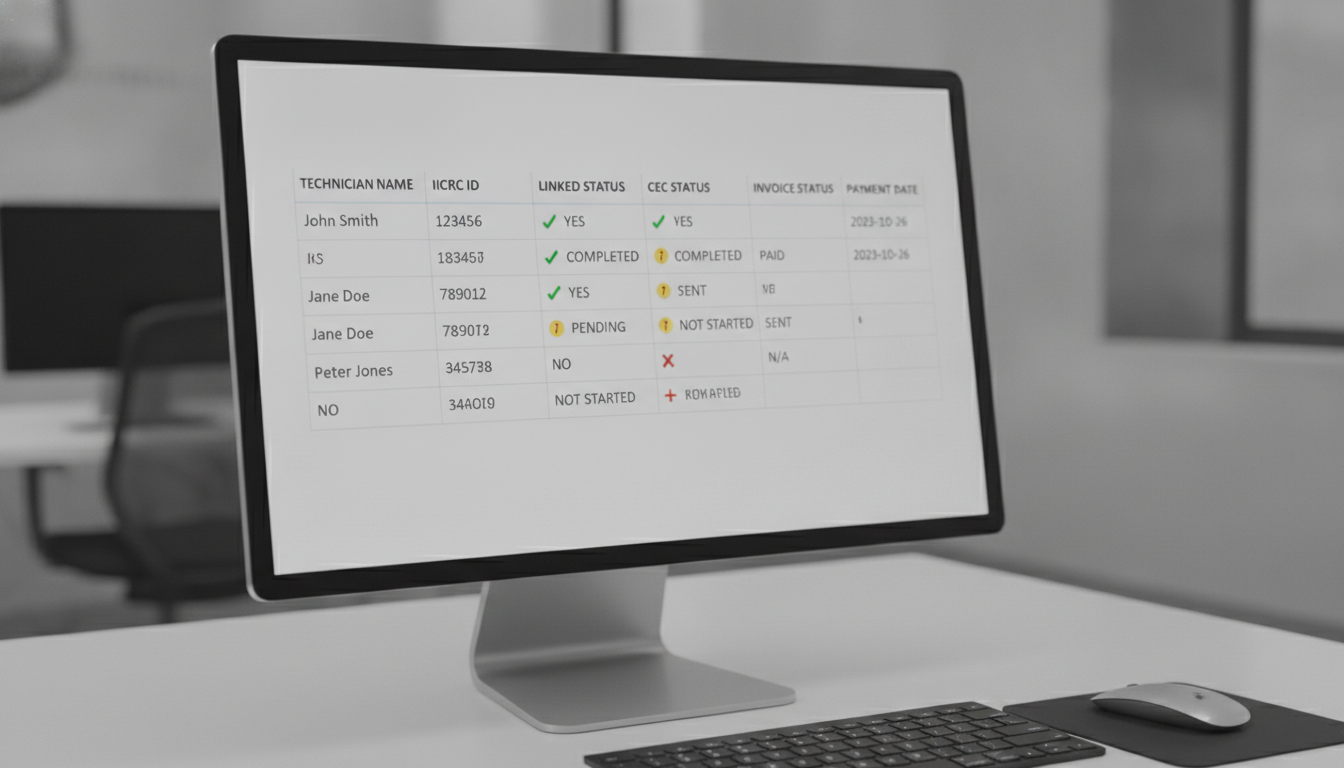
Next, you need one place where anyone on your team can answer a simple question in under 30 seconds: what is happening with each technician’s renewal right now.

Pick one source of truth and stick to it. A shared spreadsheet works for small teams, while a shared board or internal admin page works better once you are tracking 10 to 30 technicians and multiple renewal months.

For each technician, track only the fields that drive action:

  • Renewal date (the due month is often enough for planning)

  • Invoice status (where the invoice sits in your payment flow)

  • CEC status (current, short, or pending proof)

  • Documentation received (yes/no plus where it is stored)

Common mistake: tracking CECs in one place and invoices in another. Fix it by linking to the same technician row or card from both tasks so you never reconcile lists at month end.

That said, your tracking is only as useful as the stages you define. Keep invoice stages simple and use the same wording every time:

  • Not yet issued

  • Open

  • Ready to pay

  • Paid

  • Follow-up needed

If you do one thing, make “Ready to pay” mean two checks are done: the technician is correctly linked to your firm and the CEC status is not a surprise. This works best when one person owns updates weekly; it fails when updates happen only after a missed deadline.

If you’re short on time, skip extra columns. Start with renewal date + stage + a single notes field, then add CEC and documentation once you have two renewal cycles in the system.

Confirm which technicians are linked to your firm before you pay

Next, check your IICRC online company profile before you pay any renewal invoice. Your goal is simple: confirm the list of linked technicians matches who you actually manage today, and see whether there are open invoices you can pay.

If you do one thing here, do a quick name-by-name match between your internal roster and the IICRC-linked list. This catches the most expensive mistake: paying for the wrong person or missing someone who should be renewed this cycle.

Also, reconcile mismatches right away so your invoice and your tracker stay in sync. Common issues to look for:

  • Technicians who left but still show as linked

  • New hires who are active on your team but not linked yet

  • Name changes (marriage, typo fixes) that make a person look like two people

  • Duplicate profiles where one record has the current details and the other has the invoice

Works best when you do this check at the start of each renewal window, before anyone submits last-minute paperwork. Fails when you only review after payment, because you end up chasing credits, refunds, or corrections while the renewal clock is still running.

Verify CECs are current before renewal to avoid delays and documentation gaps

Next, treat CECs (continuing education credits) as a dependency for renewal, not a nice-to-have. If a technician’s CECs are short or not recorded yet, paying the renewal invoice may still leave the renewal incomplete, which can show up later as a delayed approval or a request for more documentation.

This usually fails when you pay first and try to chase CEC proof afterward, especially if you manage 10 to 50 technicians across multiple roles. For example, a lead tech might finish a class on Friday, but the completion record may not be entered or easy to find by Monday when accounting runs payments.

If you do one thing, do a quick pre-pay check for every technician on the invoice before you submit payment:

  • Confirm required CECs are completed for the current cycle

  • Verify proof is saved in a shared place (PDF certificate, email confirmation, transcript screenshot)

  • Match the proof to the right technician name and ID so it cannot be misfiled

  • Check that the completion date falls inside the accepted period

  • Confirm records are uploaded or otherwise on file where your team expects them

  • Capture any internal approvals (branch manager sign-off, training coordinator approval) before payment

If you’re short on time, at least do a spot check on higher-risk cases first: technicians with recent name changes, newly added technicians, people returning from leave, and anyone whose training was completed in the last 7 to 14 days. A common mistake is storing proof only in someone’s inbox; the fix is requiring one shared folder location and one standard filename format before the invoice gets marked ready to pay

Closing remarks

So the goal is simple: treat IICRC CEC renewal payments like a final step, not the starting line. “Pay once, renew once — with proof in hand.”

If you do one thing, make it this: only approve payment after two checks are done and recorded in the same place

  • Which technicians are attached to your firm right now

  • Whether each technician’s CECs are current and verifiable

Here’s the catch: paying first can feel faster, especially when invoices arrive in a batch and you are juggling job scheduling, payroll, and customer updates. But it often fails when one tech’s status is off by a small detail and the whole renewal gets stuck while your team hunts for emails, certificates, or screenshots.

What would it save your team if every renewal payment happened only after CECs were verified?

Get the monthly renewal checklist and tracker

FAQ

Can our Certified Firm pay open renewal invoices for technicians?

Yes, firms often pay on behalf of technicians. Before paying, confirm the invoice is for the right person, the technician is linked to your firm, and the renewal requirements are met. Keep a copy of the invoice and payment confirmation for your records

Where do we verify which technicians are linked to our company profile?

Check your firm’s roster in the certification portal where linked technicians are listed. Compare it to your internal list (HR or operations). If someone is missing or inactive, resolve the link status first before you approve any renewal payment

What happens if we pay but a technician’s CECs are not up to date?

Payment may not complete the renewal until CECs are current, which can create delays and extra follow-up. To avoid this, verify CEC status first and note any missing credits, pending course completion, or documentation you may need to submit

What documentation should we collect before approving renewal payment?

Collect the invoice, the technician’s name and certification number, proof they are linked to your firm, and a current CEC snapshot or transcript. Also save internal approval notes (who approved, when, and what was checked) so audits and disputes are easy