IICRC Certification Renewal Online After Changing Companies: What Technicians Should Update

Jul 10 / RestoreTech 360 Team

Key Takeaways

  • Your IICRC renewal can stay uninterrupted after a job change if you update employer and contact details before payment

  • CE credits, payment, and your visible public profile should match your current company to avoid delays

  • A quick post-renewal verification step helps confirm your status is correct for customers and employers

Your renewal is due, but your employer info is outdated

You log in to renew and catch it at the worst time: your profile still shows your old company name and a work email you no longer use. If you renew as-is, you can end up with renewal confirmation going to the wrong inbox, or your public listing showing the wrong employer.

Plan 20–30 minutes to review, update, renew, and verify everything end-to-end. If you do one thing, make it updating your login email and employer details first, then run the renewal flow right after while your account changes are fresh.

Use this quick checklist before you click into checkout:

  • Confirm you can access the account email on file (send yourself a test reset email if you are unsure)

  • Update employer/company name to your current company (match the name your office uses on invoices or trucks)

  • Replace your old work email with a personal or current work email you will keep long term

  • Check your phone number for renewal questions or payment issues

  • Review your mailing address if you expect a renewal card or mailed notice

  • Scan your profile for old identifiers (old supervisor name, old branch location) and remove what no longer applies

  • Take a screenshot of the updated profile page for your records

  • After saving changes, log out and back in to confirm the updates actually stuck

Works best when you make the profile updates and renewal in the same sitting. Here’s the catch: if you wait a week, it is easy to forget whether the changes saved, and you may miss renewal emails if they are still going to the prior address.

Confirm what actually changes when you switch companies

Next, treat a company switch like a sorting task: what belongs to you as a technician, and what belongs to your employer. If you mix the two, you can end up fixing the wrong fields and still have an outdated public listing after cec renewal.

Start by separating items that should follow you personally versus items that are tied to the employer. A quick way to do this is to open your current profile and write down what you see in two columns.

Usually follows you personally (verify in your account):

  • Your name as it appears on your credential

  • Your certification status and renewal due timing

  • Your unique ID or member number (if shown)

  • Your CE history, course completions, and credit totals

Usually tied to an employer or public directory listing (verify what’s displayed publicly):

  • Company name and branch location

  • Company address and main phone number

  • Public-facing listing details and service area notes

  • Any employer-linked contact email used for directory visibility

Also, separate two common issues that look similar but have different fixes: employer changes vs contact info errors. An employer change typically affects what shows up next to your name in a public listing, while contact info errors can break the way renewal notices and course completion confirmations reach you.

If you do one thing, do this: make sure the email and phone that you personally control are accurate before you touch anything employer-related. For example, if your training confirmations went to an old work email last year, your CE credits may still be fine, but you may have trouble finding the receipts or confirmation messages you need during renewal.

Here’s the catch: changing employers does not automatically mean your credentials or CE credits should reset. It works best when you keep your personal identifiers consistent (same name formatting, same personal email) and only update the employer fields that actually changed. It tends to fail when you overwrite personal contact details with a shared office inbox, then later lose access during a job change.

If you're short on time, focus on two checks that take about 5 minutes total:
  • Confirm your personal email and phone are current and accessible

  • Confirm the company name and location shown in any public listing match your current employer

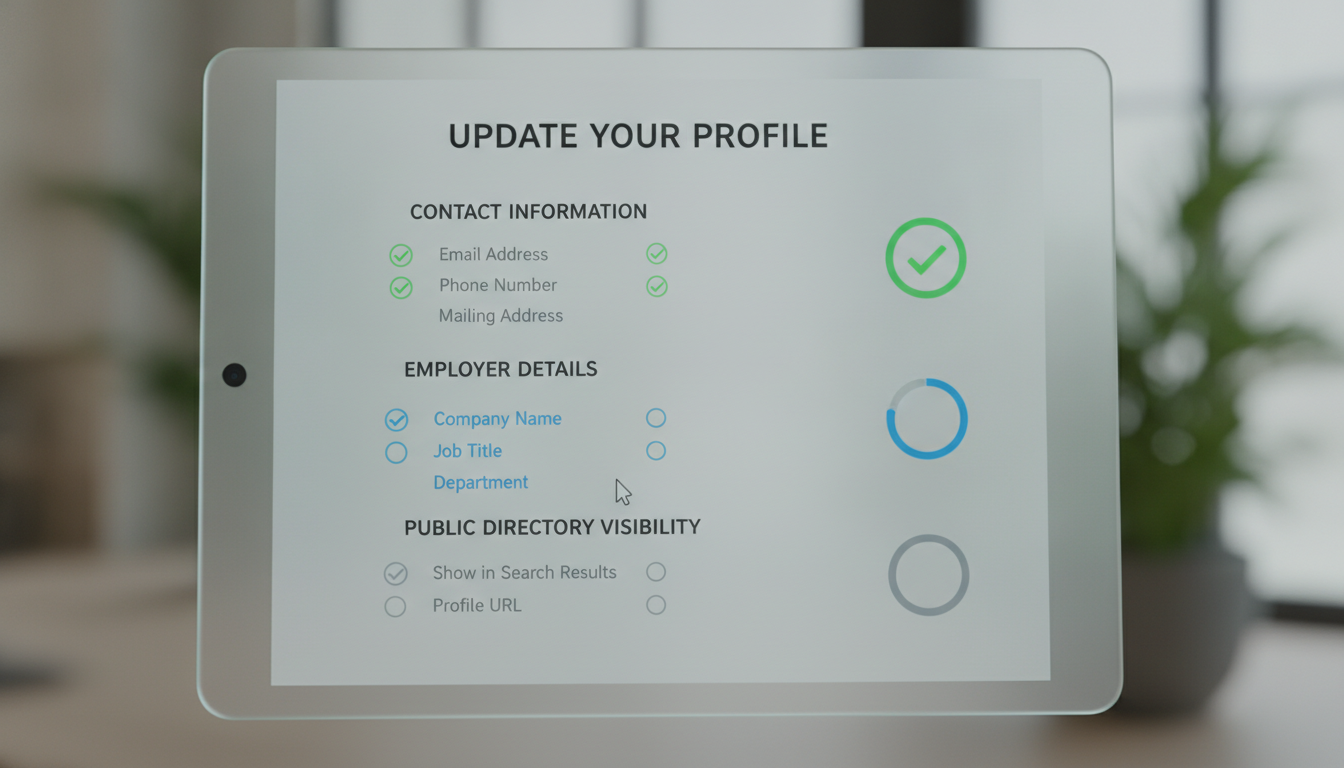
Update your profile details before you start the renewal checkout

Next, treat your profile like a pre-flight checklist before you pay for renewal. Small mismatches like an old email address or a missing apartment number can mean you never see a renewal notice, a receipt, or a follow-up request.

Start with the basics that affect how you get contacted:

  • Update your name format so it matches your legal name and your preferred display name

  • Confirm your primary email address is current and you can access it from your phone

  • Update phone number (include country code if you travel for work)

  • Review mailing address line by line (unit number, ZIP or postal code, and state or province)

Also, confirm the fields that change when you move to a new company. This is the part that keeps your certification tied to the right employer and location.

  • Update employer name to the company you work for now

  • Check your work location (city and state or province) so your listing reflects the right area

  • If there is a public directory setting, confirm what will show and what stays private

Heres the catch: profile edits are easiest before checkout because you can pause, verify, and fix typos without wondering whether the renewal itself updated anything. If you do one thing, make sure your primary email is correct since it affects every message you will need after payment.

Common mistake and fix:

  • Mistake: updating employer but forgetting work location, which makes your listing look inconsistent

  • Fix: change employer and work location in the same session, then save and re-open the profile to confirm it stuck

Verify CE credits and documentation are correctly applied

Next, don’t assume your CE shows up correctly just because you completed the class. Before you pay for renewal, take 10 minutes to compare what you completed this cycle against what’s actually listed in your renewal portal.

Start with a quick two-part check: your total hours and your proof. If you spot a gap, it is usually faster to fix it now than after renewal is pending.

  • Confirm your CE total matches your personal log (course name, date, hours)

  • Upload completion records if the portal allows it, or confirm they are already attached

  • Keep files clearly named (for example: "CourseName_2026-03-15_Certificate.pdf")

  • If you are missing one course, search by provider and date before you re-upload

Here are the mismatches that most often slow approvals, plus the quickest fix. If you do one thing, verify the technician name on every course entry matches your current profile exactly, including middle initial and any suffix.

  • Wrong technician name on the CE entry: ask the provider to reissue or correct the roster, then recheck in 2 to 5 business days

  • Duplicate course entries: remove the extra entry if you can, or submit a short note to support stating which one should count

  • Missing credit hours: confirm the course is approved for the credit type you need, then upload the certificate showing hours

  • Course not appearing at all: collect proof (receipt, certificate, completion email) and submit it in one message so it can be matched faster

Renew, then double-check your status and public-facing listing

Next, treat the renewal checkout like a record you may need to prove later, not just a payment screen. Complete the payment, then immediately save what you will need if someone asks for proof next week or during a job change.

  • Save your payment confirmation number and receipt screenshot

  • Note your next renewal date in your calendar (set a reminder 30 days before)

  • Store the receipt where you keep CE documentation so it is all in one place

Here’s the catch: a successful checkout does not always mean your public-facing status looks right right away, especially after a company switch. Take 5 minutes to verify what others will see, and fix anything that still points to your old employer.

  • Check that your certification status shows as current (not pending or past due)

  • Confirm your name format, email, phone, and mailing address match your current contact info

  • Review any company or branch fields and remove old-company details where possible

  • If you appear in a public directory, search your listing and confirm the correct employer info displays

If you do one thing, do this: screenshot the “current” status page after renewal plus your updated listing, then save both with your receipt. If you’re short on time, skip the deep profile review and at least confirm status, renewal date, and any employer-facing fields before you close the browser tab.

Closing remarks

Next, remember this simple rule: accuracy beats urgency when credentials are on the line.

If you do one thing today, do a quick profile sweep before you get busy again, even if it takes only 5 minutes. The renewal checkout can be fast, but fixing mismatched employer details later can take longer and may cause confusion when someone looks you up.

What’s the one profile field most likely to still point to your old company, and when will you update it?