Aug 20 • RestoreTech 360 Team

Renewals iicrc net org Portal Guide: How to Fix Blocked Invoices & Missing Credits

Key Takeaways

If your renewal is due and the portal is blocking progress, start with the fastest checks first: your profile details, your renewal eligibility, and the invoice status shown in the renewals iicrc net org portal. In many cases, one mismatch (like an outdated email, address, or employer) can keep an invoice from moving from “generated” to “payable.”

Missing CEC credits usually have a smaller cause than it feels like. The most common issues are processing lag (think days, not minutes) or a mismatch between the certificate details you uploaded and what the portal expects (name format, course date range, provider, or certificate ID).

If you do end up needing support, prepare specific details first to avoid weeks of back-and-forth:

  • Your account email and any alternate email used in prior renewals

  • Your certification numbers and the renewal cycle or due window you are trying to complete

  • The invoice number, current invoice status, and any error message text you see

  • For CEC issues: course title, completion date, provider name, and the exact certificate file you uploaded

When your renewal is due but the portal will not cooperate

You log in to renew, ready to pay and move on, and the screen shows a blocked invoice or a CEC balance that does not match what you completed. The stress usually is not the renewal itself, it is the fear that a portal issue will make you miss a deadline.

As a timing benchmark, most portal updates post within 1–3 business days, but anything involving verification can stretch to 2–4+ weeks. By the end of this section, you will be able to follow the renewal workflow without guessing, spot the most common mismatch causes, and send a support-ready request that gets answered faster.

Next, separate what is likely a normal posting delay from what is an actual mismatch. If you do one thing, do this first: confirm whether the item is still within the 1–3 business day window, then collect proof in one place before you keep clicking around.

Common reasons the portal looks wrong, and what they usually mean:

  • You renewed under a different login/email than the one tied to your certification record

  • Your name format does not match across records (middle initial, suffix, or spelling variation)

  • Payment shows pending at your bank, but the invoice is not yet posted in the portal

  • CECs were uploaded, but the course provider has not verified them yet

  • You have more than one profile and credits are sitting on the other account

  • You are looking at the wrong renewal cycle or a different certification in the same profile

So, when you reach out for help, send a support-ready request that makes it easy to verify who you are and what is missing. If you're short on time, skip extra explanations and send the checklist below with your screenshots.

Support-ready request checklist:

  • The email address used to log in

  • Your full name as shown on the certification

  • Your certification ID or member number (if you have it)

  • The invoice number and status shown (blocked, open, pending)

  • A screenshot of the blocked invoice message and your CEC summary screen

  • The date you paid or attempted to renew

  • For missing CECs: course name, completion date, and any certificate file names

Common mistake: sending only a complaint like "my credits are missing" with no identifiers. Fix: include the invoice number, dates, and two screenshots so support can check the record without back-and-forth.
Navigate the renewals iicrc net org portal without missing a required step

Next, treat the renewal portal like a checklist, not a quick checkout. Most “stuck” renewals happen when you jump to payment before your profile and certification record are fully recognized, which can lead to a duplicate invoice or an invoice that never becomes payable.

A practical benchmark: if you cannot see your active certification status and a clear renewal option within a few minutes of logging in, pause and verify your account details before you create any invoice.

Use this iicrc renewal online path in order (and do not skip steps):

  • Log in and confirm you are in the correct account (especially if you have an old email, a new employer, or multiple logins)

  • Open your profile and verify key fields like name spelling, email, and any required identifiers match what your certification record uses

  • Go to renewals and select the correct certification and renewal cycle (for example, the credential you actually hold, not a similar category)

  • Create the invoice only after the renewal option is visible and selectable

  • Pay the invoice and keep the receipt or transaction confirmation open until you see a completed status

  • Check for on-screen confirmation and any email confirmation because one without the other can mean the payment posted but the renewal step is still pending

So, before you pay, confirm eligibility and status to avoid blocked or duplicate invoices. Look for a status that indicates the certification is active and renewable, and confirm there is not already an open invoice for the same renewal period.

Common mistake: creating a second invoice because the first one is not obvious. Fix: search your account for existing invoices first, and only create a new one if there is no open or pending invoice tied to that certification.

Fix blocked invoices by checking the most common account and invoice triggers

Next, assume the block is coming from a mismatch the system cannot reconcile, not a random error. Many invoice holds happen when identity fields do not line up across your profile, membership record, and certification record, so the invoice cannot confirm who it is billing.

Start by validating the fields that most often cause a hold:

  • Name format: match your certification record (for example, include or remove a middle initial consistently)

  • Email address: use one primary email across profile and membership, and avoid old work emails you no longer access

  • Company name: keep it consistent, especially if you recently changed employers or switched from personal to business billing

  • Certification ID alignment: confirm the ID tied to your renewal is the one on your account, not an older credential

Also, blocked invoices often come from invoice state issues rather than your profile fields. If you do one thing, check whether the portal already has an invoice in progress, because duplicates and lingering carts can keep a new invoice from generating.

Look for these common invoice triggers:

  • Duplicate invoices: an invoice exists for the same renewal period, so the system will not create another

  • Stale cart items: an old cart session is still attached, and checkout keeps reloading the same items

  • Unpaid past balance: a prior invoice is still open or partially paid, so the portal routes you back to that balance

  • Pending review flags: an invoice is marked for review, which can pause payment until the flag clears

Here's the catch: these checks work best when you recently updated your profile or attempted checkout in the last 24 to 48 hours. If you are short on time, skip broad profile edits and focus on one clean pass: confirm your name and email match the certification record, then re-check for an existing invoice before trying again.

Resolve missing CEC credits when uploaded certificates do not reflect

Also start by confirming what the portal expects your certificate to match. Most “missing credit” cases come down to one detail not lining up, like the course type or the completion date being outside the accepted range.

Check these four items before you troubleshoot anything else:

  • Correct course type and category (CEC vs other education types)

  • Completion date is within the iicrc renewal date range the portal is looking at

  • Trainer or provider details match what the portal recognizes (name spelling, provider ID if shown)

  • The certificate matches the certification you are renewing (wrong program or designation is a common mix-up)

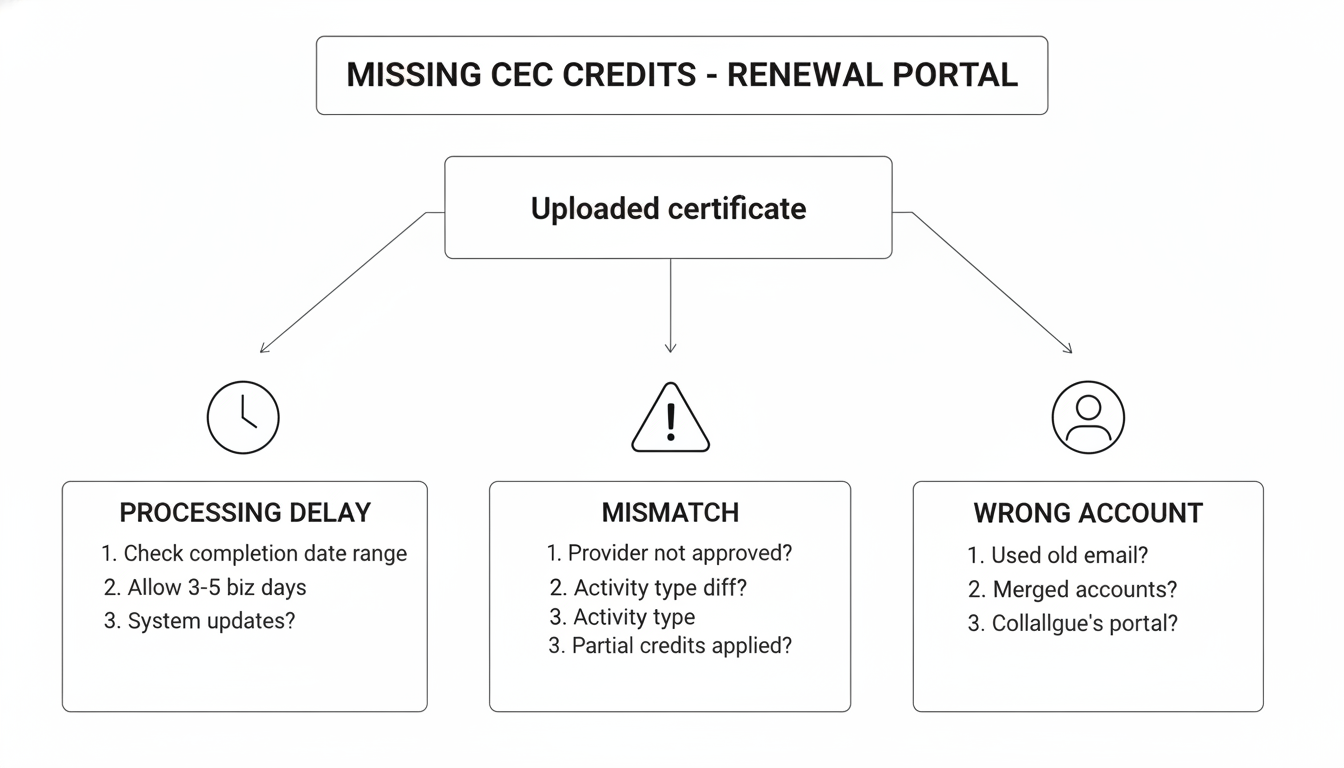
Next decide whether you are dealing with lag (credits are still processing) or a real discrepancy (credits will not post without a fix). A practical benchmark: if you uploaded today and nothing shows immediately, that can be normal, but if the upload status shows rejected or incomplete, waiting will not help.

Use this quick triage:

  • Processing delay

    • Look for an upload status like pending or processing

    • If you uploaded within the last 24 to 72 hours, re-check later before re-uploading

  • Discrepancy or rejection

    • Check for rejected uploads, unreadable files, or missing pages

    • Compare the completion date on the certificate to the renewal period shown in your account

    • Watch for partial credits (for example, 7.0 posted when you expected 14.0) and confirm the course hour breakdown

  • Credits applied to the wrong account

    • Confirm the email and user profile you are logged into, especially if you have an older account

    • If you have multiple profiles (personal vs employer-managed), confirm the certificate was uploaded under the same profile tied to the certification

Closing remarks

So when renewals feel slow, it is usually not because the work is hard, but because one detail is still unknown.

“Speed comes from clarity—especially when verification is involved.”

What part of your renewal is unclear right now: portal navigation, invoice status, or your CEC balance, and what will you verify first?